How to add in-app chat support to your iOS app
You can support your users inside your app with an AI chatbot. It handles everything for you, from questions about the app to their RevenueCat subscriptions.
To add in-app chat support with ChatFrom, you first build a chatbot from your knowledge base or documentation. Next, you open the chatbot's Deploy page in ChatFrom and switch on Mobile apps, so the chatbot can run inside an app. Then you add ChatFrom's Swift package to your app in Xcode. One line of code shows the chat. Adding the code takes a few minutes. Most of the work is writing a good knowledge base for the chatbot.
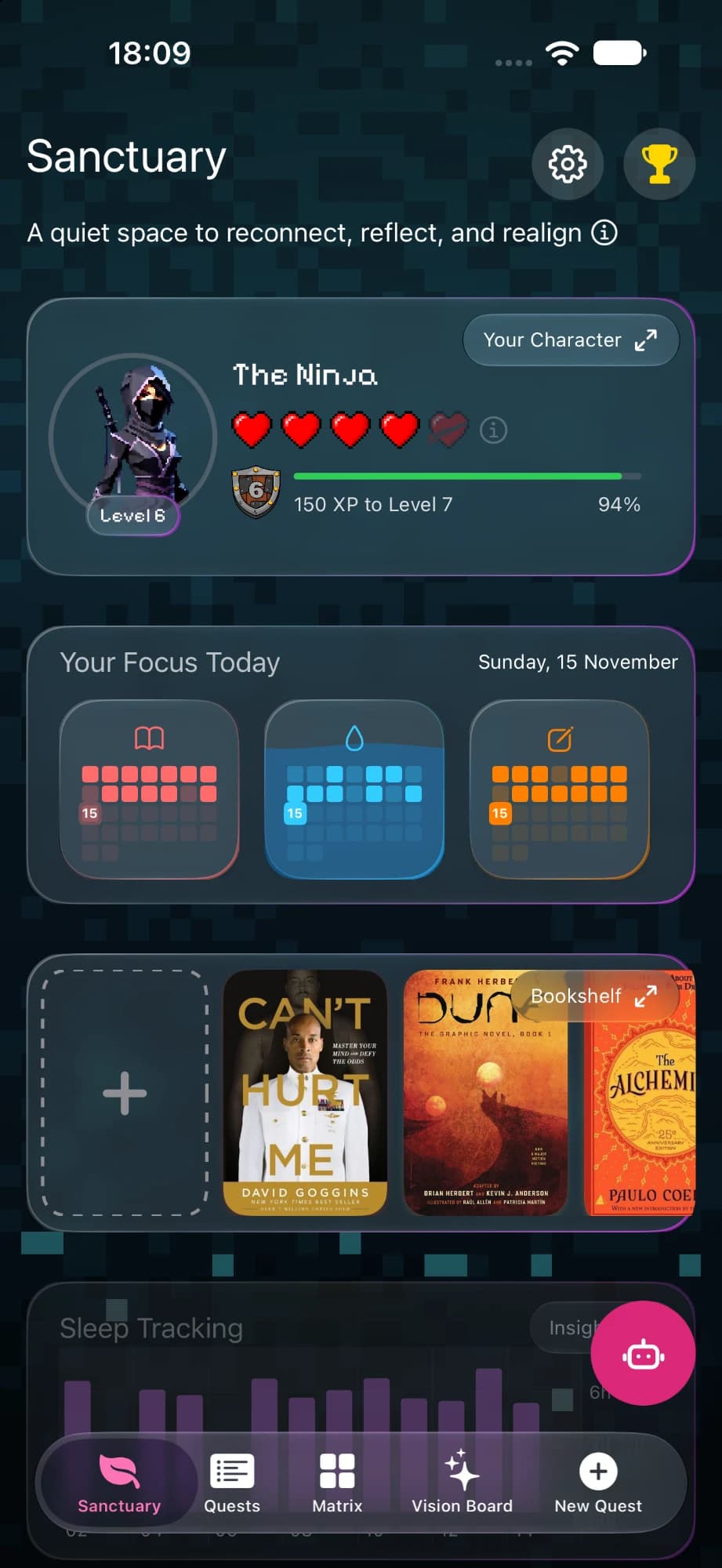
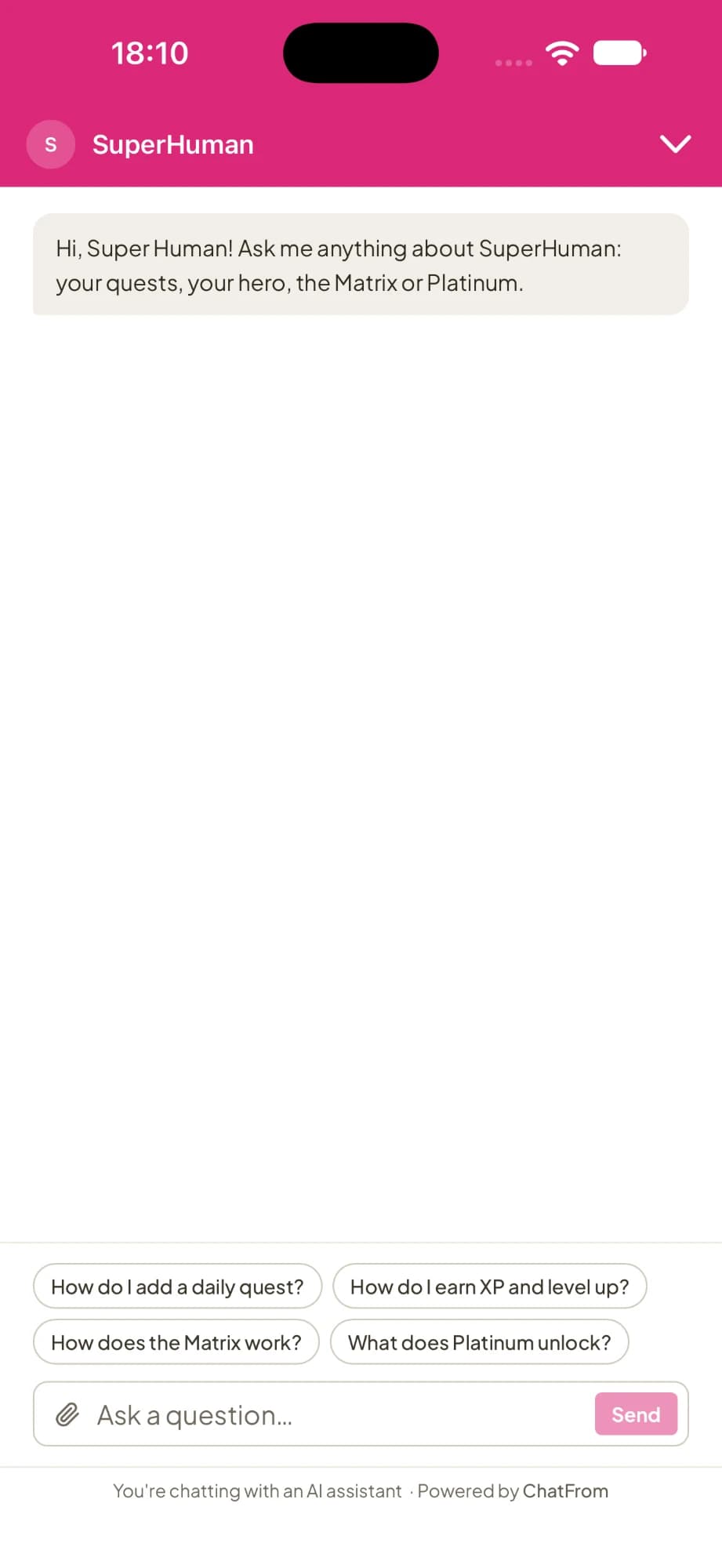
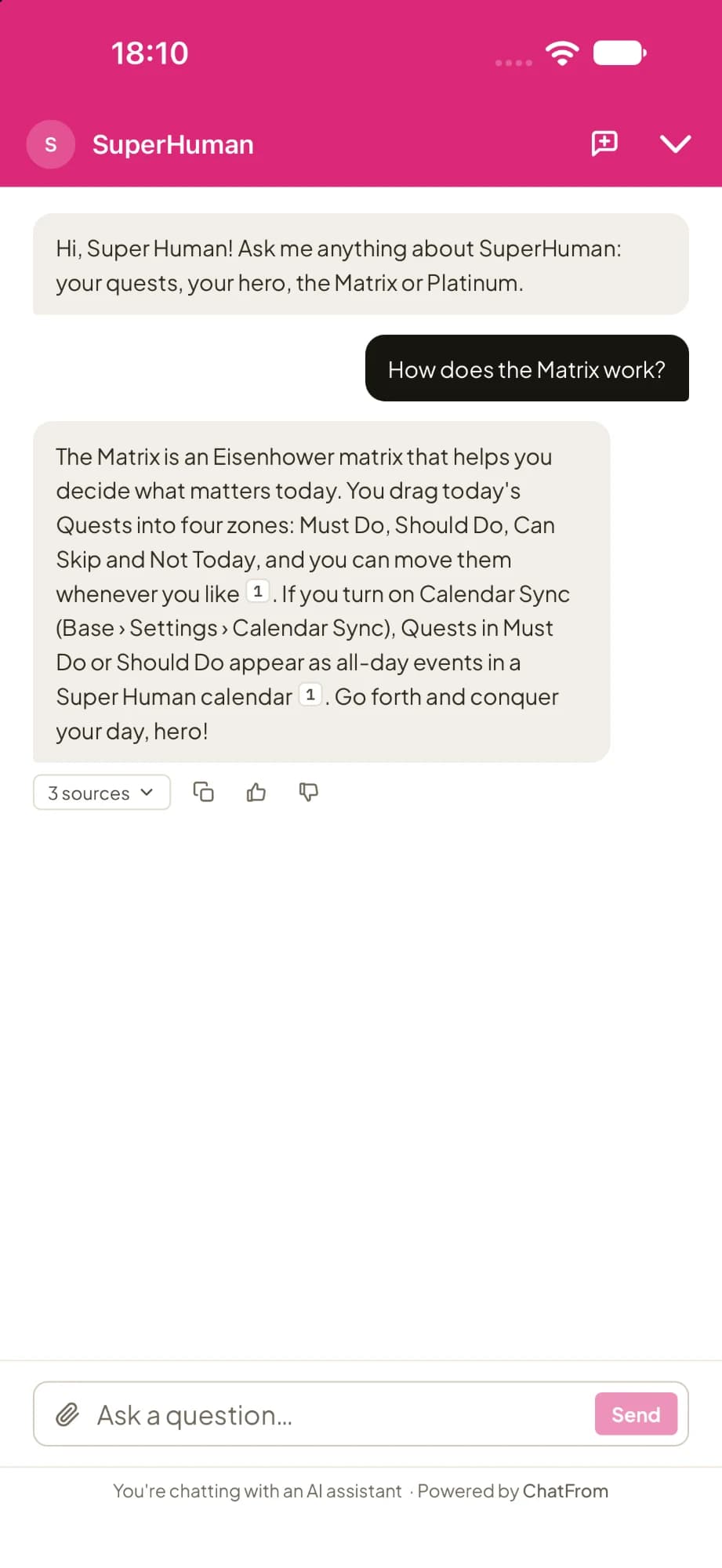
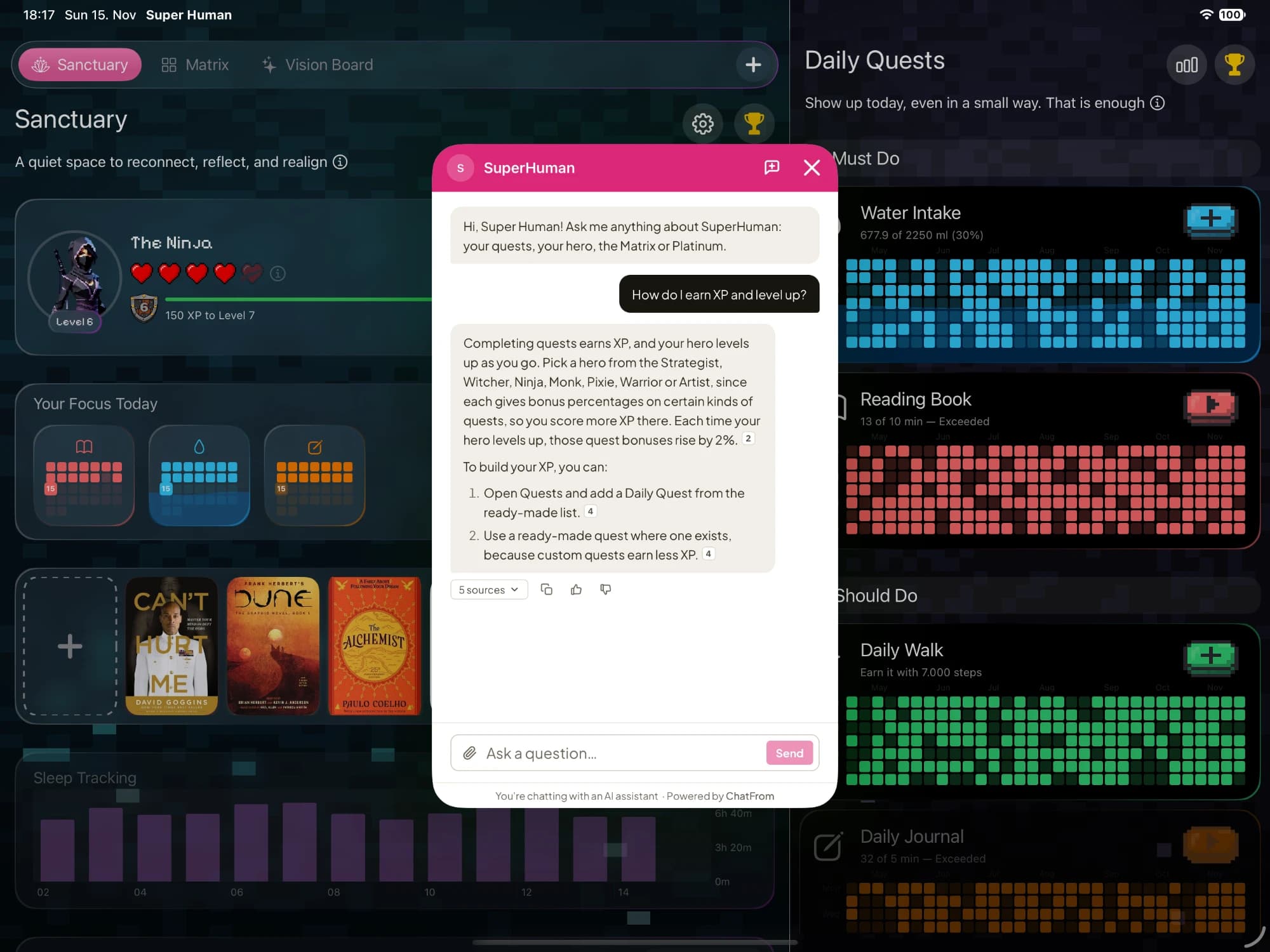
I make ChatFrom, and I use its iOS SDK in SuperHuman, our habit tracker for iPhone and iPad. Its chatbot answers from the app's guide and website. It can also tell a subscriber when their plan renews.
Why add a chat to your app?
With a support email, users have to leave your app and explain their problem in an email. With a chat inside the app, they ask their question right where they are. The chatbot answers in a few seconds, day or night.
Most support questions in an app are the same few, such as how a feature works, why a purchase is missing or how to cancel. If your knowledge base covers them, the chatbot answers them well. You only get emails for the questions that really need you.
What it costs
ChatFrom has a flat monthly price. You don't pay per seat, per user or per conversation. Each plan comes with credits. On the default AI model, one answer uses about one credit. A long conversation, a bigger model or an answer that looks something up uses more.
| Plan | Price a month | Credits a month | About how many conversations |
|---|---|---|---|
| Hobby | Free, with no card | 50 | About 17 |
| Pro | $29 | 7,000 | About 2,300 |
| Business | $49 | 20,000 | About 6,700 |
These numbers assume three answers in each conversation, on the default AI model. If your app has 1,000 support conversations a month, the $29 Pro plan is enough.
How to add the chat to your iOS app
First, build your chatbot in the ChatFrom dashboard, the same way you would for a website. Add your knowledge base or documentation. This can be your website, files, Notion pages or Google Docs. Then ask it a few real questions from your users to check the answers.
Turn on Mobile apps
In the ChatFrom dashboard, open your chatbot's Deploy page and switch on Mobile apps. This lets the chatbot run inside an app. Then press Go live. You will also need the chatbot's id, which is the part of the dashboard address after /dashboard/. If the chatbot is only for your app, you can leave the website field empty.
Add the Swift package
In Xcode, choose File > Add Package Dependencies. Enter the package address and add the ChatFromSDK library to your app. Set the rule to the next minor version, because the API can still change before version 1.0.
Show the chat
Add this one line when your app starts. It shows a chat bubble in the corner, in the colour and icon you picked under Deploy.
The bubble stays above your tab bar and moves out of the way when the keyboard opens. To hide it on a screen, such as your onboarding, call ChatFrom.setBubbleHidden(true). If you don't want a bubble at all, you can add a row to your settings screen instead.
Tell it who is signed in
If your app has accounts, call identify when someone signs in. Call logout whenever their sign-in ends, for example when they sign out or their session expires. Then the next person on a shared iPad doesn't see the previous person's chat.
The SDK only uses a fingerprint of the user id, and it stays on the device. If your chatbot's tools need to act for the user, you can also pass a token from your server.
Answer questions about subscriptions
If you use RevenueCat, connect it under Tools. Then the chatbot can answer a user's questions about their subscription, such as whether it is active, when it renews and how to cancel it. Your app also tells the chatbot who the user is. For someone signed in, that is the token from your server that you pass to identify. Otherwise, use one of these lines.
What Apple asks of you
Apple's App Review guideline 5.1.2(i) says an app must tell people when it shares their data with a third party, including a third party's AI. It must also ask their permission first. A support chat counts, because people often write personal details in it.
The simple way to do this is a short consent screen before the chat opens for the first time. Show the bubble or the row only after the user agrees. You can also use your own button that asks first and then opens the chat with ChatFrom.open(botId:).
Your privacy policy should mention the chat too. Add NSCameraUsageDescription to your Info.plist, because the chat can offer to take a photo. If your Info.plist has WKAppBoundDomains, add chatfrom.io to it.
What it can't do yet
There is no live chat with your team inside the app. When the chatbot hands a conversation over, your team gets it by email or in Slack and replies by email. If you want to chat with users live inside your app, a help desk with its own in-app inbox is a better fit.
It doesn't send push notifications. If someone closes the chat while an answer is on its way, the answer is there when they open the chat again. With Remember returning visitors on, their conversation is still there after the app restarts.
It works on iOS only, on iOS 16.4 or later. An Android SDK is planned.
The chat always uses a light theme, even when the phone is in dark mode.
Common questions
How much does in-app customer support cost?
With ChatFrom you pay a flat monthly price, not a price per seat or per user. On the default AI model, the $29 Pro plan covers about 2,300 support conversations a month. You can try it for free on the Hobby plan, with no card.
Do I need a server to add a chatbot to my iOS app?
No, you don't. The SDK talks directly to ChatFrom, which runs the chatbot for you. You only need your own server if the chatbot's tools have to act for a signed-in user.
Does Apple allow an AI chatbot in an app?
Yes, it does. You need to tell users that the chat uses a third party's AI, and ask for their permission before they use it for the first time.
Can the same chatbot answer on my website and in my app?
Yes, it can. Your app shows the same chatbot as your website, with the same knowledge and tools. All the conversations end up in one place.
Does it work on iPad?
Yes, it does. On iPhone the chat opens full screen, and on iPad it opens as a card.
Should you add it?
I think it is worth it if your app has a knowledge base or documentation and you answer support emails yourself. The chatbot answers the common questions right away, at any time of day. The $29 Pro plan covers about 2,300 conversations a month, and with hand-off on, the questions it can't answer still reach you by email or Slack.
It is not the right fit yet if you want to chat with users live inside your app, or if most of your users are on Android.
ChatFrom puts an AI chatbot in your iPhone and iPad app, with the same knowledge and tools as on your website. The iOS guide covers every step, and you can start for free on the Hobby plan.